
Setting Up A Metatrader 4 Expert Advisor On A VPS Tutorial
Forex VPS Guide (Tutorial)
If you already have a VPS, skip to the steps below. If you are still looking for a VPS, then check out this important forex VPS review and comparison of all the top providers to make your decision easier.
You must have a windows based VPS for this tutorial to work for you.
Step 1
Signup to a forex VPS provider and you will get an e-mail with an IP address, username and password to connect to.
Step 2
Open the remote desktop connection program in windows. You can usually find it in your Start Menu under Accessories. It should look something like the image below.
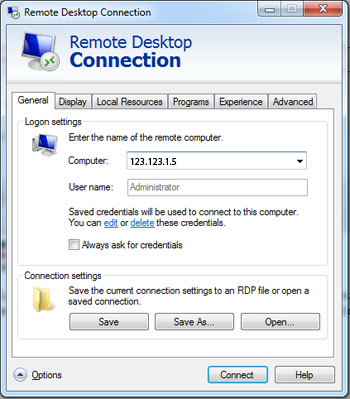
remote-connect
Step 3
Enter your IP for you VPS and your username, then it will prompt you for your password when you press connect.
Step 4
You should now be connected to your VPS and a fresh empty windows desktop should appear. All that’s left now if to download Metatrader 4 platform installer from your broker. So open up Internet Explorer and browse to your brokers website, and find the download link.
Step 5
Once you have Metatrader 4 installed, you will want to get your expert advisor(s) on to the VPS. The easiest way I find to do this is using the local resources tab on the Remote Desktop Connection like so.
Click the options arrow like shown below…
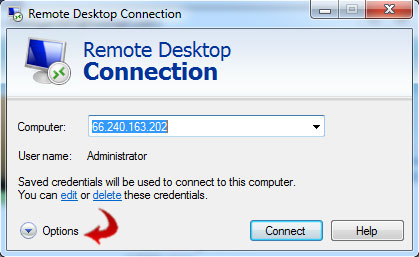
remote-default
Now click on the local resources tab and you will see this below…
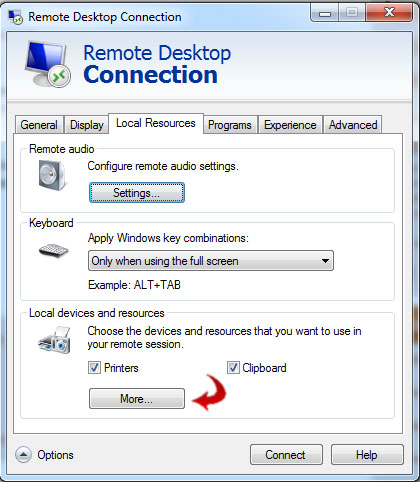
remote-local-resources
Then click the more button show above under local devices and resources and you should get this…
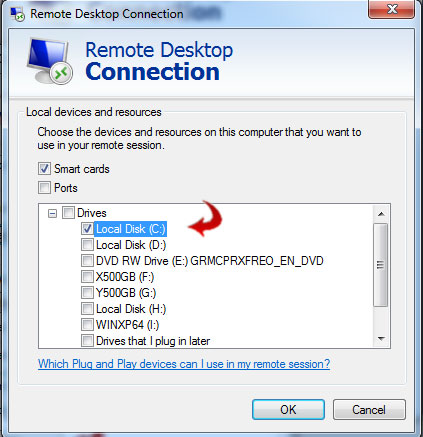
remote-drives
Checkmark the drives you want to share with your VPS and click OK. Now your done and can transfer files between your desktop and your forex VPS.
Step 6
Install the expert advisor into your Metatrader 4 experts folder just like you would on your own computer, and then start the MT4 terminal.
Step 7
Attach the EA to the appropriate charts, and you’re done!
Autorun on startup?
If you want your MT4 terminal(s) to autorun whenever the VPS gets restarted, then just create a shortcut in the following directory. C:\Documents and Settings\Administrator\Start Menu\Programs\Startup
Multiple MT4 Installations?
If you want to install multiple MT4 instances from say Alpari UK demo, then just change the install directory to something like C:\Program Files\Metatrader 4 Alpari UK 2\







Metatrader 4 is the most brokers used platform to trade forex live in foreign currency market, commodity, future and etc. Metatrader 4 mobile application is now available for IOS and Android and it is free.Traders can open trade any time, any place with wifi or cellular data.
Metatrader 4 offer more than 300 trading Currency Pairs and other features Access financial markets, technical analysis and stay up-to-date with news and events.
Metatrader 4 multiTerminal allow you to manage multiple accounts without sign out and sign in another account.
i cant find C:\Documents and Settings\Administrator\Start Menu\Programs\Startup
in the new vps. what do i do?
hello dear admin
thank you for your tutorial
but the address C:\Documents and Settings\Administrator\Start Menu\Programs\Startup
is in win xp
and i can not find this address in win 7
please explain it for win 7
thanks
Login to your administrator and paste a shortcut by clicking start menu/program/startup
I want to know how much you charge for it. can u configurate via team viewer?
try to get winrar zip so u can use it to unfold
Dis is great.
U`r a GREAT INSTRUCTOR.
I believe it’s possible to install the MT4 terminal by the same process as attaching EAs from a dive on my PC.
Thanks so much. this really came handyy.
como hago el shorcut? donde lo abro, creo una carpeta? puede expecificar esto por favor mejor? muchas gracias…
the EA doesn’t appears on my platform but it downloaded successfully. What can i do?